How AI Automatically Places Signature Fields in Your Documents
See how AI reads your PDF and places signature, date, and text fields in exactly the right spots, no manual setup required.
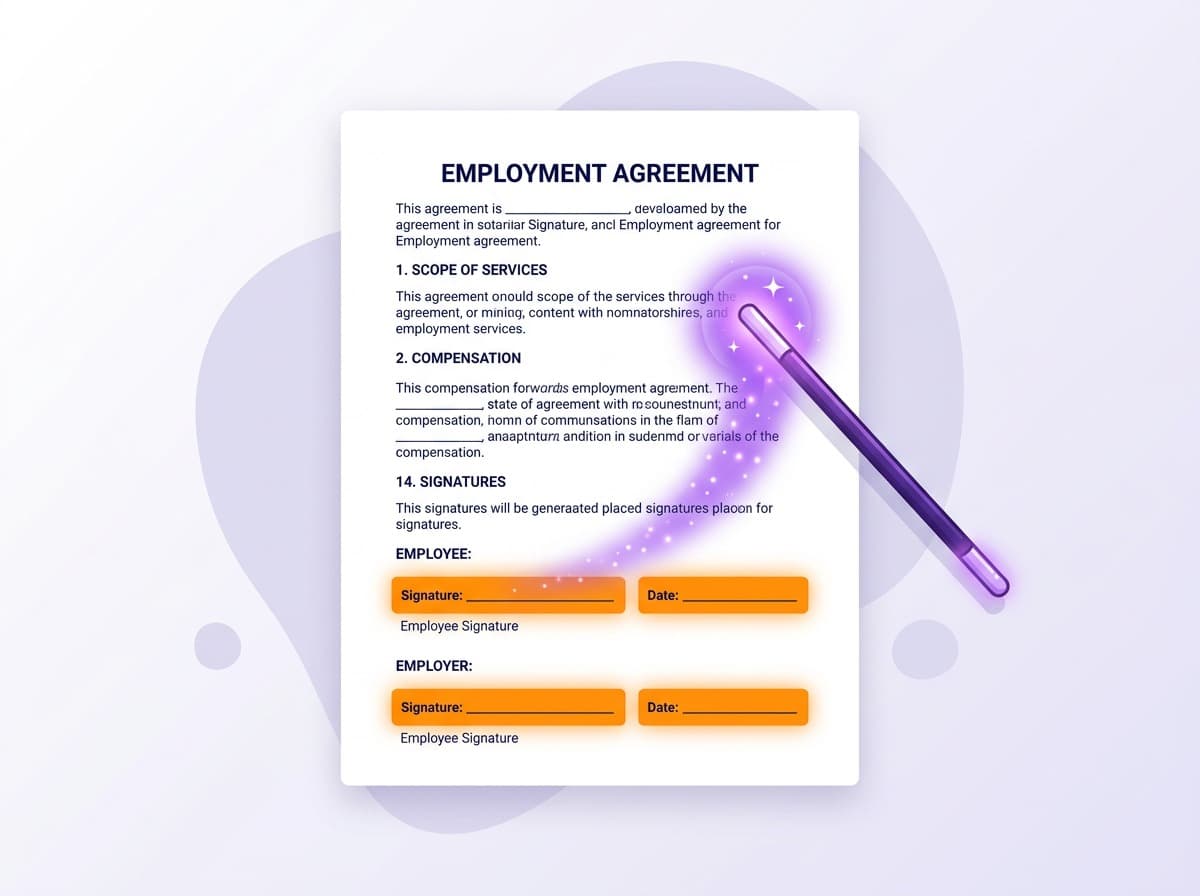
Nobody enjoys the field-placement step. You upload a contract, open the editor, and then spend the next several minutes dragging signature boxes, date fields, and text inputs to the right spots, page by page. For a short NDA it's fine. For a 20-page employment agreement with six signers, it starts to feel like a chore that shouldn't exist.
That's what AI field detection is meant to fix.
What Actually Happens When You Click "Detect Fields with AI"
It's not just pattern matching on the visual layout of the PDF. Three things happen at once:
First, the document's text is extracted with exact coordinates, every word, its position on the page, and its dimensions. Blank lines (rows of underscores) and bracket-style placeholders like [ ] are flagged specifically, along with the line of text above them for context.
Second, that layout map gets sent to Claude along with the PDF itself. Claude reads both at the same time, the visual document and the precise text positions. It's looking for context, not just shape: "Authorized Signature" followed by a blank line on page 3 is a signature field, even if it looks identical to a dozen other lines in the document.
Third, field coordinates come back and get placed automatically. Not estimated, placed at the actual y-position of the blank line, centered, sized appropriately for the field type.
The whole thing takes a few seconds.
What It Can Find
The AI picks up four field types:
Signature fields: Lines labeled "Signature:", "Sign here:", or underscored blanks at the end of sections or clauses. These get wider boxes because signatures take more horizontal space.
Date fields: Anything near "Date:", "Dated:", or "As of:" gets a compact date field. Usually these appear right next to a signature line.
Text fields: Name, title, address, company, and other fill-in blanks. The AI uses the label above or beside the blank to determine what kind of text input it is.
Checkboxes: The [ ] and ( ) patterns used in forms for acknowledgments, yes/no options, or multiple-choice selections.
It's Not Perfect, and That's Fine
The AI is a starting point. Most standard contracts, NDAs, service agreements, offer letters, come back with fields placed correctly and nothing to adjust. Complex forms with non-standard layouts, two-column designs, or unusual formatting might need a tweak or two.
After detection, every field is fully editable. Drag it, resize it, delete it, or change its label. The field properties panel lets you mark any field as required or assign it to a specific signer. If the AI missed something, adding a field manually takes five seconds.
Think of it as doing 90% of the work and handing you the rest.
How the Limits Work
AI detection is available on every SigPen plan. The monthly limit resets on the first of each month:
| Plan | AI Detections/Month |
|---|---|
| Starter | 10 |
| Professional | 30 |
| Business | 75 |
| Enterprise | Unlimited |
New accounts get 14 days at Professional level, 30 detections, with no credit card required. That's plenty of runway to test it on your actual documents before committing to anything.
Trying It
Further reading: How to Sign a PDF Online and How to Send a Document for Signature.
Sign up for SigPen, upload any PDF from your dashboard, and open the editor. The Detect Fields with AI button is in the toolbar. Click it, watch the fields appear, adjust anything that's off, and send.
It's one of those features that's easier to see than to explain.
Ready to simplify your document signing?
Start your 14-day free trial. No credit card required.