How to Send Documents for E-Signature from Claude
Connect SigPen to Claude, ask it to draft or fill in a document and line up the signers, then approve the send yourself. Setup takes about a minute.
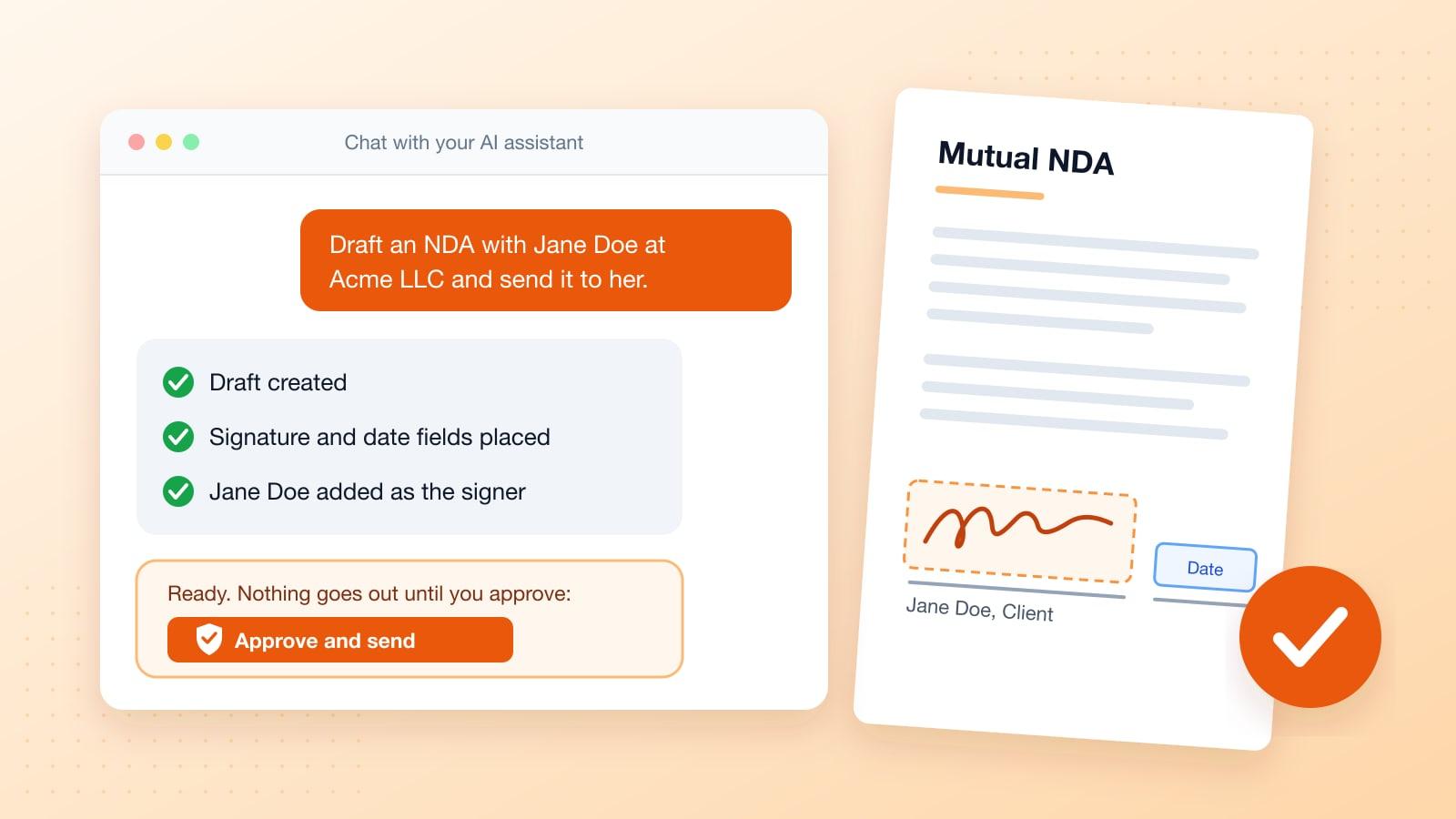
To send a document for signature from Claude, add SigPen from Claude's connector directory, sign in, and click Allow. Then ask for what you need, like "Draft a mutual NDA between Acme LLC and Jane Doe and send it to Jane." Claude writes the draft in your SigPen account, places the fields, and sets the signers. It can't send it, though. It gives you a SigPen link, and the document goes out when you open that link and click Approve and send.
The rest of this post walks through each step, with a few things to ask and what to do if you'd rather start from your own PDF.
What you need
- Claude on the web, Claude Desktop, or the Claude mobile apps. Connect it once on the web or desktop and it works on your phone too.
- A SigPen account on the free Developer tier, the 14-day free trial, or Professional at $29 a month and up. Starter doesn't include AI assistants.
No SigPen account yet? You can start the trial in the middle of connecting, so there's nothing to set up first.
Step 1: Connect SigPen to Claude
You only do this once.
- In Claude, open Customize, then Connectors.
- Search for SigPen, open it, and click Connect to Claude.
- Sign in to SigPen. If you don't have an account, click Start a free 14-day trial on that page. When your account is ready you go straight back to finish connecting. No credit card required.
- Click Allow.
To check it worked, ask Claude "What SigPen plan am I on?" On a Claude Team or Enterprise plan, an owner may need to add the connector for your organization first.
One catch for new accounts. If you signed up with an email and password, click the confirmation link SigPen emails you. Claude can connect before you do, but it can't do anything in your account until the address is confirmed. Google and Microsoft sign-ins are already confirmed.
Step 2: Ask for the document
Talk to Claude the way you'd brief an assistant. A few examples:
- "Draft a mutual NDA between Acme LLC and Jane Doe (jane@example.com). Two-year term, New York law."
- "Use my contractor agreement template for Sam Lee, starting December 1 at $60 an hour, and add me as a signer too."
- "Which documents are still waiting on a signature, and who hasn't signed?"
Behind the scenes, Claude creates a draft in SigPen (from text it writes, or from one of your templates), places signature, date, and text fields with the same AI field detection the SigPen editor uses, fills in names, dates, and amounts, and sets who signs in which role.
Two things count toward your plan's limits: each draft counts as a document for the month, and placing fields with AI uses one of your monthly AI detections.
Step 3: Approve the send
When you ask Claude to send, it gives you a link instead. Open it while signed in to SigPen and you'll see the title, every person who gets a signing invitation, how many fields each one fills, and any values Claude filled in. If it all looks right, click Approve and send. If not, open the draft and fix it in the editor first.
The link works for 24 hours and only for you. If anything on the draft changes after the link is made (a recipient, a field, the title), the link stops working and Claude has to ask again.
This is on purpose. A document can contain text written to trick an AI assistant, like a line telling it to send a copy somewhere else. Because Claude never gets a send button, the worst it can do is prepare a draft you then decline.
Starting from your own PDF
Claude on the web and in the desktop app can't hand SigPen a file from your computer. If you want to start from a PDF you already have, use Claude Code or Cursor instead. They connect with a SigPen API key, and you can say something like:
"Upload ./services-agreement.pdf, fill in Acme LLC and a $5,000 fee, and send it to Jane Doe as the Client."
The setup guide has the exact command for Claude Code, Cursor, VS Code, and Codex.
Using ChatGPT instead
ChatGPT works the same way, and the free ChatGPT plan is enough. Open Plugins in the sidebar, click Add, then Add custom MCP server. Name it SigPen, use the URL https://www.sigpen.com/api/mcp, and keep OAuth as the authentication. After you sign in and click Allow, start a chat with @SigPen.
Disconnecting
Go to the AI Assistants tab in SigPen's developer dashboard and click Disconnect next to Claude. It's cut off right away, and any approval links it made stop working.
Other e-signature MCP servers
SigPen isn't the only e-signature tool with an MCP server. DocuSign, signNow, and SignWell have one too. If you're comparing, check three things:
- Can the assistant send without you? With SigPen it can't.
- Can it place the fields? SigPen's places them with AI field detection, so you don't drag boxes onto the page.
- Which plan do you need? SigPen's works on the free Developer tier (10 documents a month) and on Professional, which is $29 a month with unlimited documents.
For more on what the assistant can and can't do, see SigPen for AI assistants.
Ready to simplify your document signing?
Start your 14-day free trial. No credit card required.